.png)
How to share Google Analytics access

This article is Part 4 of our Measurement Series and provides step-by-step instructions on how to share Google Analytics access. If you need help setting up Google Analytics, or Google Tag Manager, see our helpful articles below.
- How to set up Google Analytics
- How to set up Google Tag Manager
- How to add Google Analytics to Google Tag Manager
- How to share Google Analytics access
- How to share Google Tag Manager access

Let’s share Google Analytics access!
- First things first. Head over to analytics.google.com and get logged in.
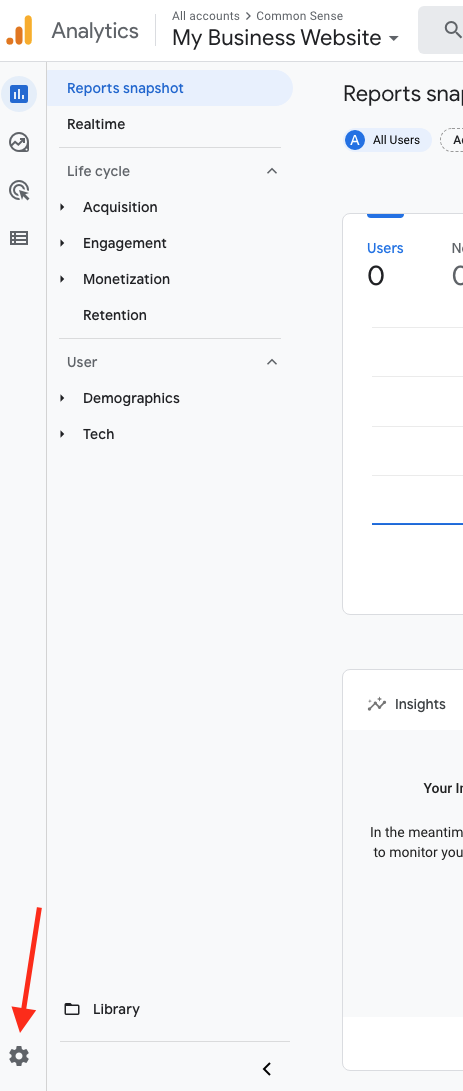
- At the bottom left, find the Admin Icon (a gear) and click it.
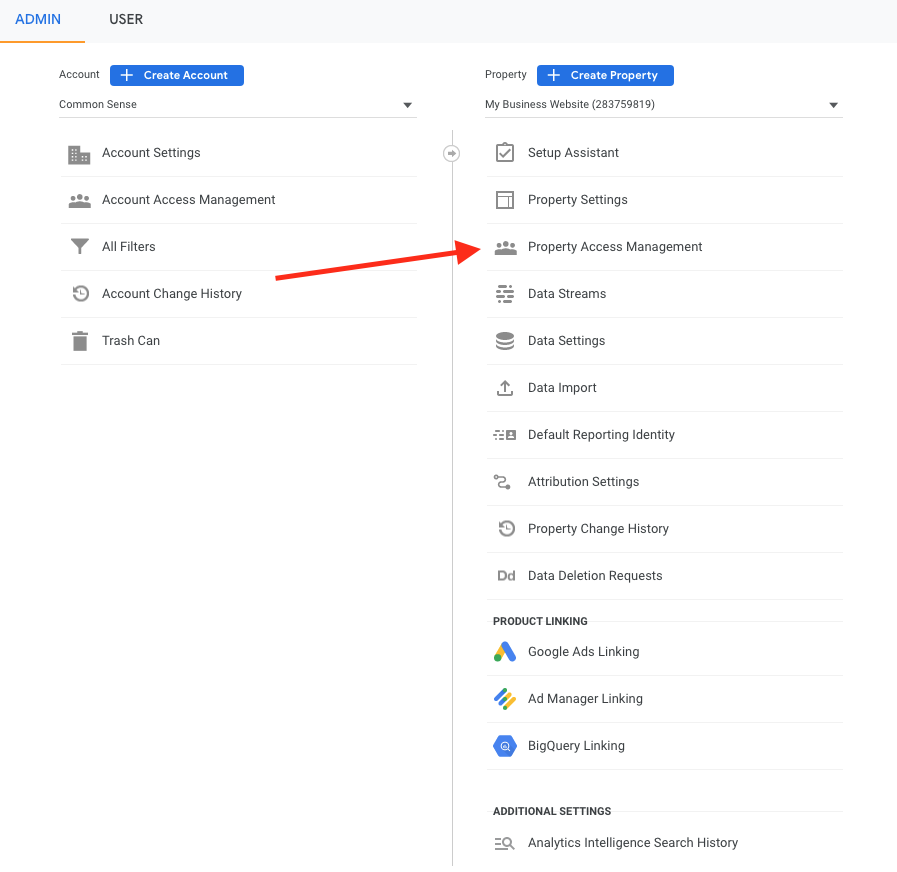
- In the Property column, NOT the Account column, select “Property Access Management”.
- Look for the blue + sign in the corner. Click that + sign, then click Add Users.
- Enter the email address of the person you want to share Google Analytics access with and give them the proper permissions. With an agency, you want to ensure that Edit, Collaborate, and Read & Analyze are checked.
- Click the “Add” button at the top right to send out the invite.

That’s all there is to sharing Google Analytics access with someone safely. You can always remove their access as well by returning to the Property Access Management section and removing the user.